
4K Ultra HD makes sports and movies look stunning – but only if every link in the chain supports it: the IPTV service, the device, the app, the TV and your internet. Raccoon TV includes 4K channels and VOD; here is how to make sure you actually see them in 4K.
This guide walks you through the setup step by step with pictures, the best apps to use, the settings that give the smoothest picture and quick fixes for common problems.
What You Need Before You Start
- Your Raccoon TV login: server address, username and password (Xtream Codes) or an M3U link, sent by WhatsApp or email.
- 4K TV connected to the internet (Wi-Fi or cable).
- A compatible IPTV app: TiviMate, IPTV Smarters Pro or IBO Player Pro.
No login yet? Request a 24-hour free trial – it takes a few minutes.
How to Set Up Raccoon TV on 4K
Step 1 – Install TiviMate
Use a 4K-capable device (Fire TV Stick 4K/4K Max, NVIDIA Shield, Chromecast with Google TV 4K, Apple TV 4K or a recent 4K Smart TV) and install TiviMate or IPTV Smarters Pro.
Step 2 – Add a playlist
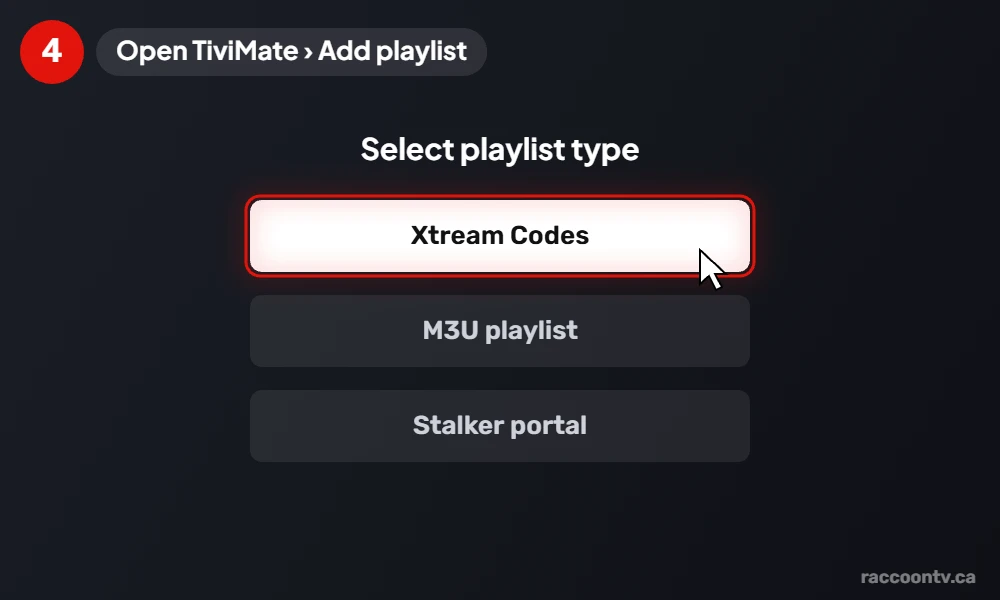
Open TiviMate and choose to add a playlist or user, then select Xtream Codes (or M3U if you prefer).
Step 3 – Enter your Raccoon TV login
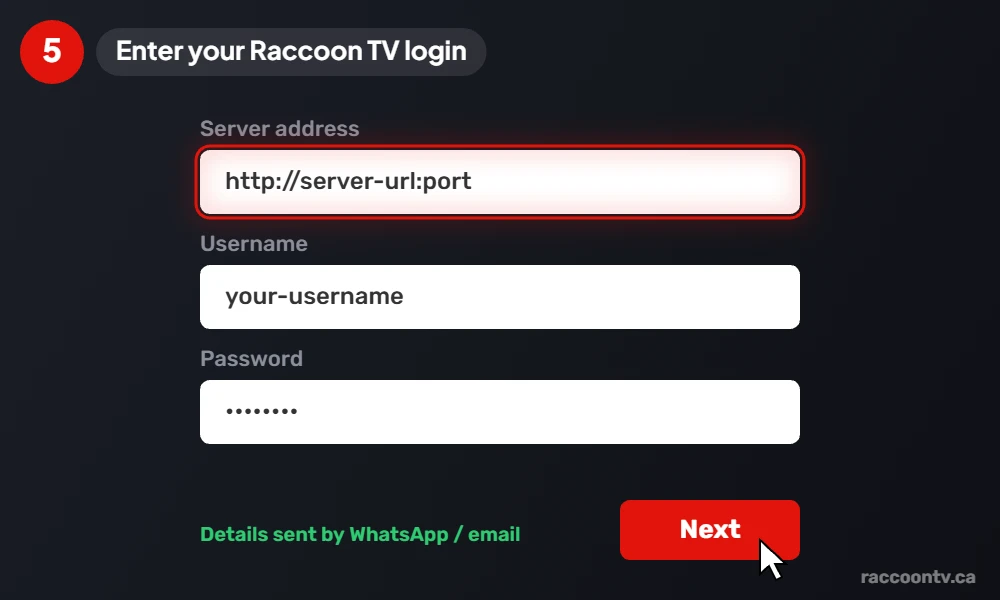
Type the server URL, username and password we sent you and confirm.
Step 4 – Load channels and watch
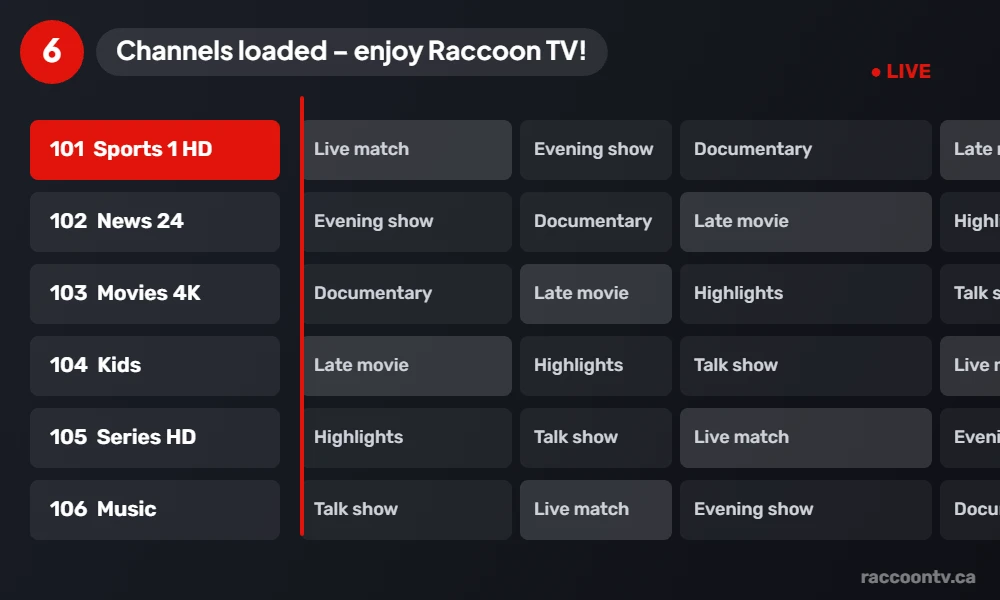
Wait a few seconds while channels, VOD and the TV guide load, then pick a channel.
Want help with your 4K TV? Our team guides you live on WhatsApp.
Get Setup Help4K Checklist
To watch in 4K you need: a 4K TV, a 4K device, an app that outputs 4K, an HDMI port that supports 4K (HDMI 2.0+) and about 40–50 Mbps for that screen.
Best Settings for a Smooth Picture
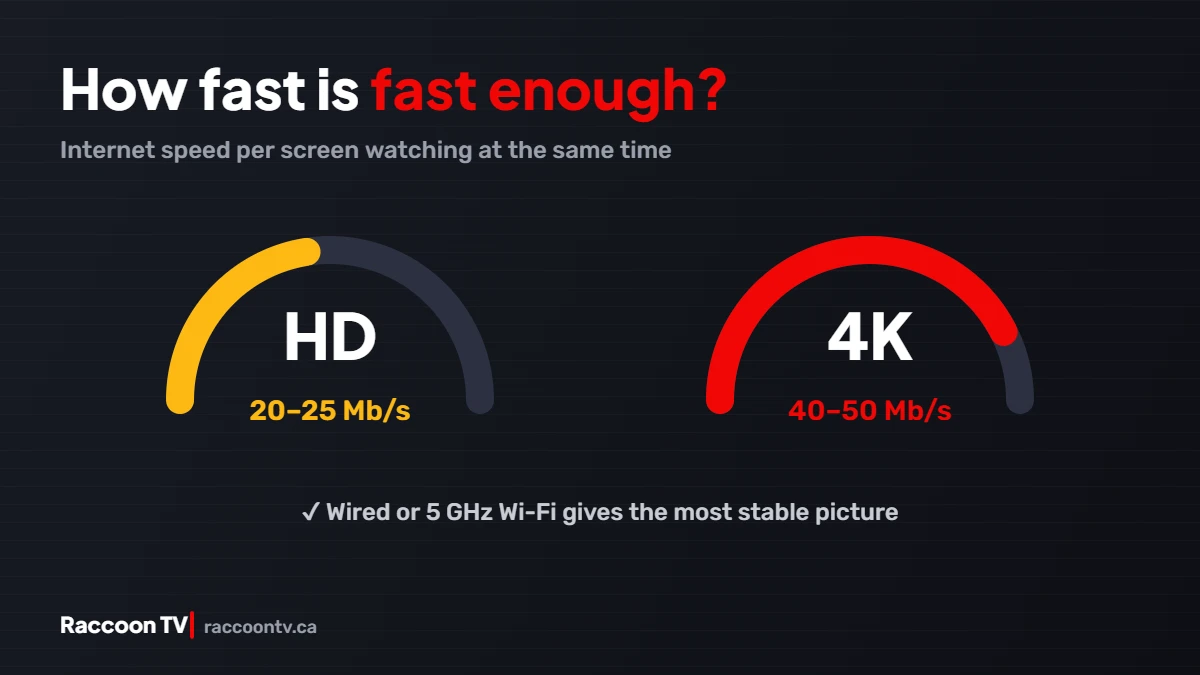
- Use Ethernet or 5 GHz Wi-Fi for the most stable picture.
- Count about 20–25 Mbps per HD screen and 40–50 Mbps per 4K screen.
- Update the EPG (TV guide) from the app settings once a day.
- Restart the device and router if you notice slowdowns.
- In your device display settings, set the resolution to 2160p and enable HDR if your TV supports it.
Troubleshooting
- Login failed: check the server, username and password (capital letters, spaces).
- Channels not loading: restart the app and refresh the playlist.
- Buffering: move closer to the router, switch to Ethernet or 5 GHz Wi-Fi and restart the device.
- Empty TV guide: update the EPG in the app settings.
Test Everything With a Free Trial
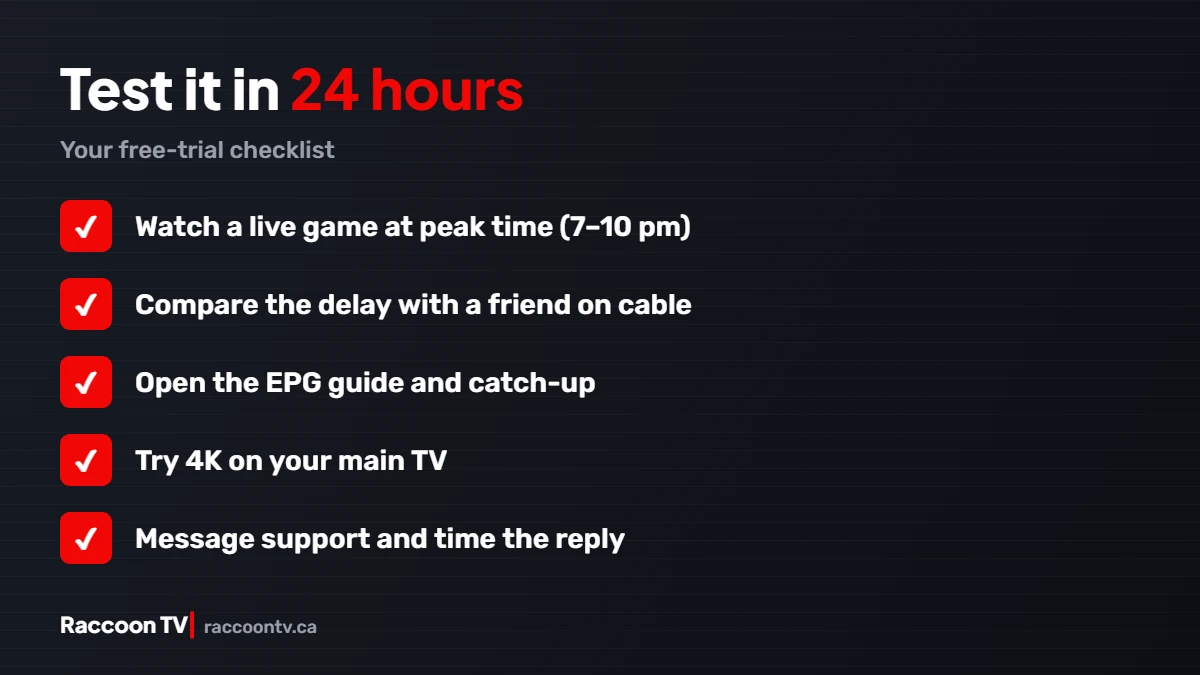
Install your app, then ask for a free 24-hour Raccoon TV trial. Watch a live game at peak time, try 4K and the TV guide, and pick a plan for 1 to 4 devices only if you are happy – with a 15-day money-back guarantee.
Ready to watch on your 4K TV? Start your free 24-hour trial now.
Get My Free TrialFrequently Asked Questions
Are all Raccoon TV channels in 4K?
No. Many channels are HD or Full HD; Raccoon TV includes a dedicated selection of 4K channels and 4K movies and series.
Why does my 4K channel look like HD?
Check that your device is set to 2160p, that you use a 4K HDMI port and that your connection gives at least 40 Mbps.
Is Raccoon TV the best IPTV for 4K in Canada?
Raccoon TV is built for Canadian viewers: 32,000+ channels, 4K, anti-freeze servers and 24/7 WhatsApp support in English and French – and you can test it free for 24 hours on your 4K.
How many devices can I use?
Choose a plan for 1, 2, 3 or 4 devices watching at the same time, from CA$27. Every plan has a 15-day money-back guarantee.
Final Thoughts
With the right device and connection, Raccoon TV’s 4K channels and movies look as sharp as anything on TV. More guides are on our blog and in the installation guide.