IPTV Canada subscription – live TV, sports and VOD in 4K
How to Install Raccoon TV – Step-by-Step Setup Guide
Setting up Raccoon TV takes only a few minutes. Pick your device below and follow the steps with pictures: Fire TV Stick, Android TV box, Smart TV, iPhone, Android phone, computer or MAG box. Stuck at any point? Our team helps you live on WhatsApp.
After your order or free trial, we send you a server URL, username and password (Xtream Codes) or an M3U link by WhatsApp or email.
2. An IPTV player app
Raccoon TV works inside a player app such as TiviMate, IPTV Smarters Pro or IBO Player Pro. Some apps have their own activation fee set by the developer.
3. A stable internet connection
Around 20–25 Mbps for HD and 40–50 Mbps for 4K. An Ethernet cable or strong Wi-Fi gives the smoothest picture.
Raccoon TV works with all popular players. Here are the apps our customers love most:
TiviMate
Fire TV Stick, Android TV, Android boxes
The favourite for TV screens: very clear EPG guide, recording and favourites (Premium version).
IPTV Smarters Pro
Android, iPhone, iPad, Fire TV, Windows, Mac
Simple and free – a great start on almost any device.
IBO Player Pro
Samsung, LG, Android, Fire TV
Ideal for Smart TVs, activated with your MAC address.
XCIPTV
Android, Fire TV
Fast, lightweight player with a good program guide.
iPlayTV / GSE Smart IPTV
Apple TV, iPhone, iPad
Top picks for Apple devices.
VLC
Windows, Mac, Linux
Free and plays your M3U link directly on a computer.
App names belong to their developers. Raccoon TV provides the subscription; the player app is installed separately.
Install Raccoon TV on Amazon Fire TV Stick
Works on Fire TV Stick Lite, 4K, 4K Max and Fire TV Cube. We use the TiviMate player in this example.
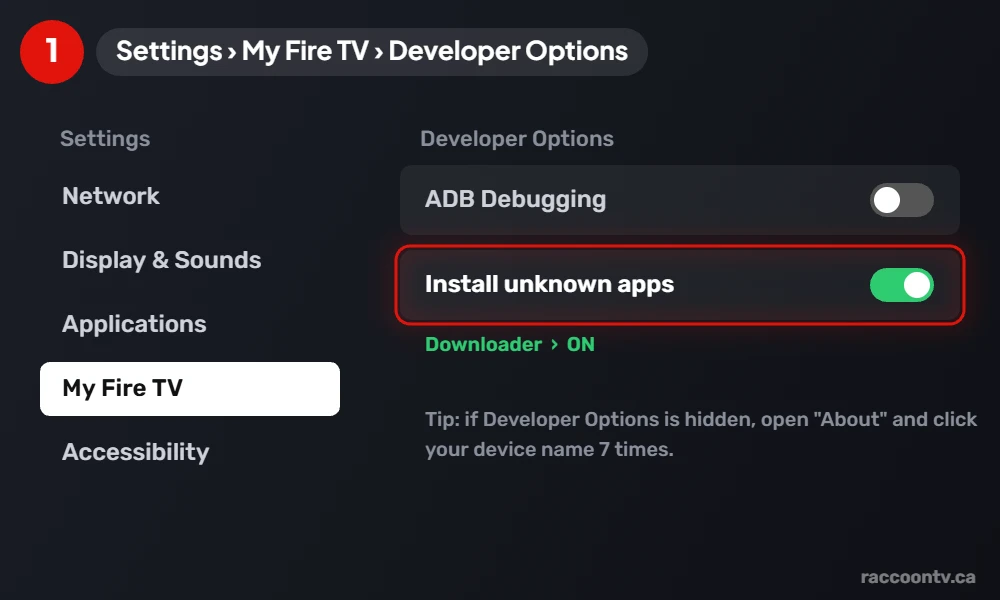
Step 1 – Allow app installs
Go to Settings › My Fire TV › Developer Options and turn on “Install unknown apps” for Downloader.
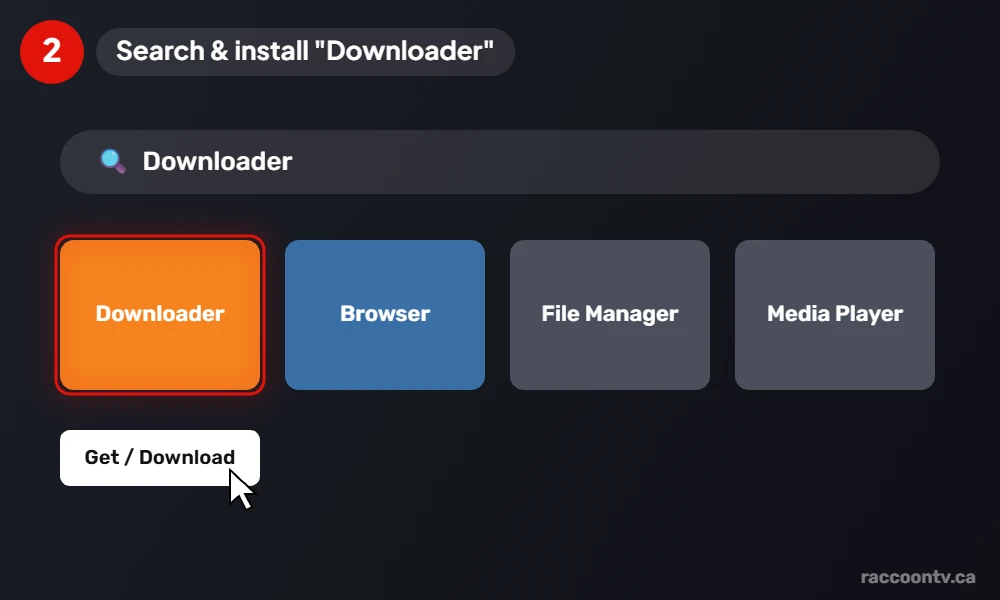
Step 2 – Install Downloader
From the home screen, search for “Downloader”, select the orange app and press Get / Download.
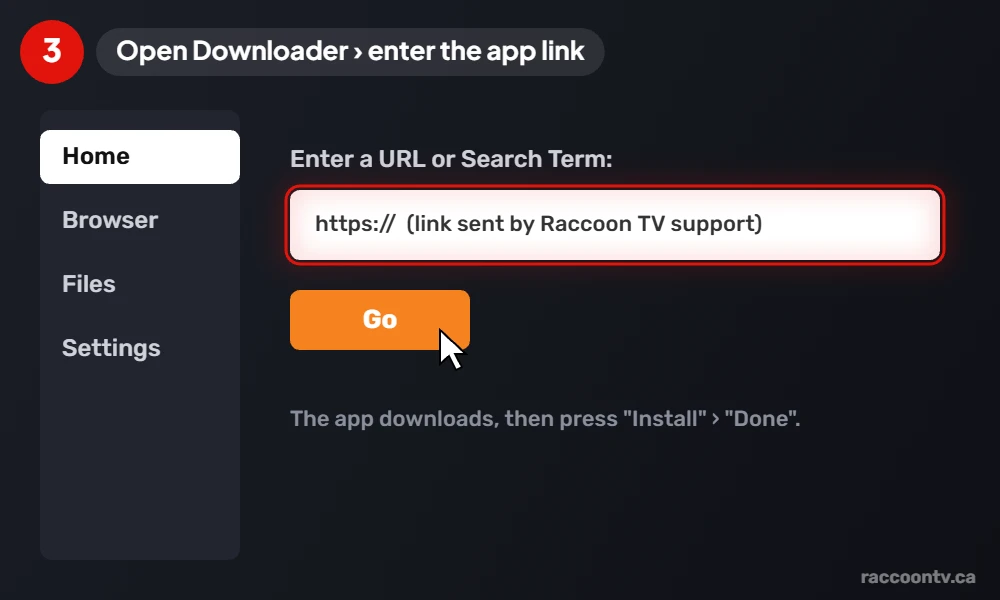
Step 3 – Download TiviMate
Open Downloader, type the app link our support sends you, press Go, then Install and Done.
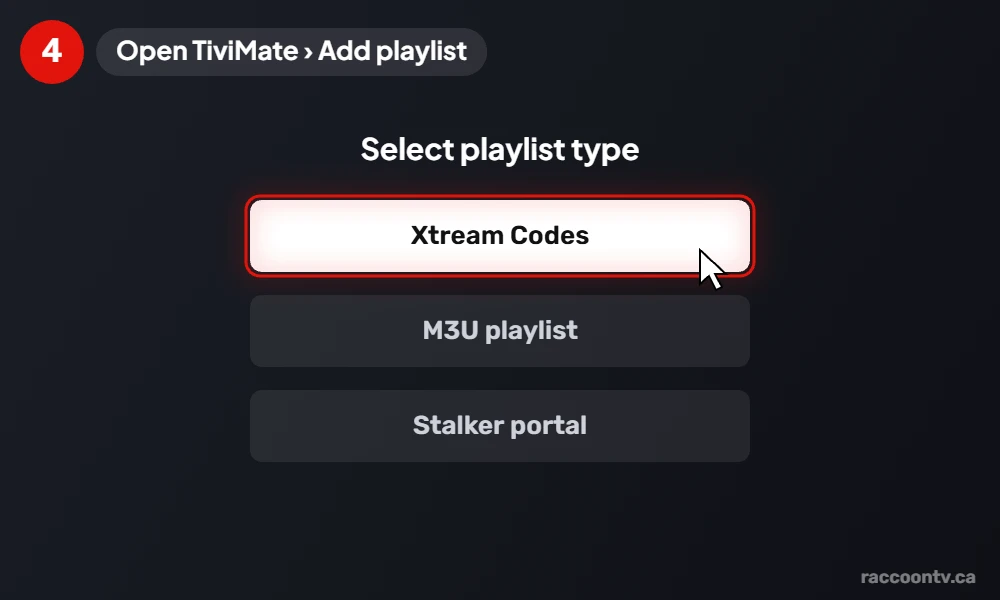
Step 4 – Add a playlist
Open TiviMate, choose Add playlist and select Xtream Codes (recommended) or M3U playlist.
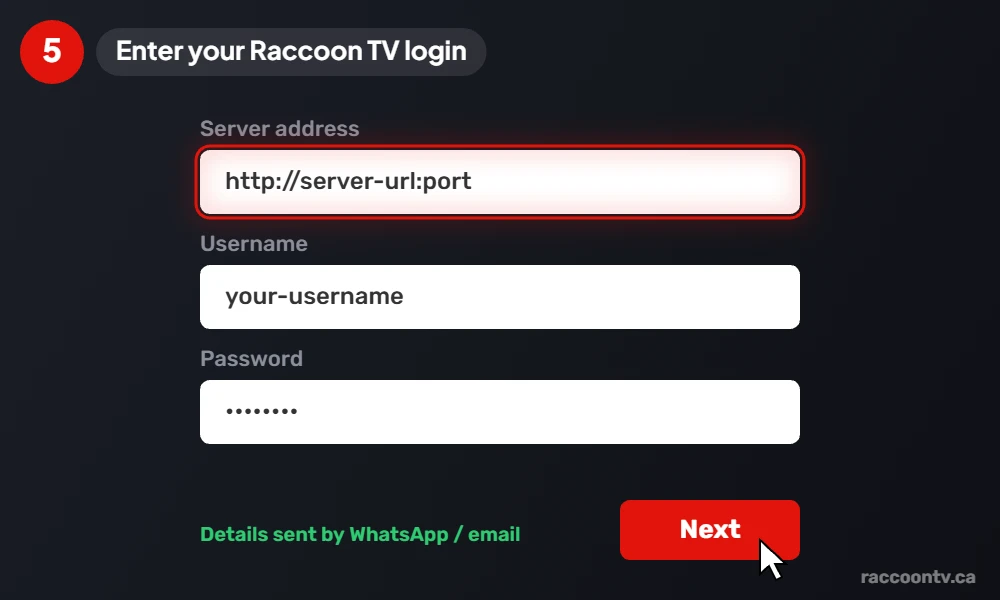
Step 5 – Enter your login
Type the server address, username and password exactly as received, then press Next.
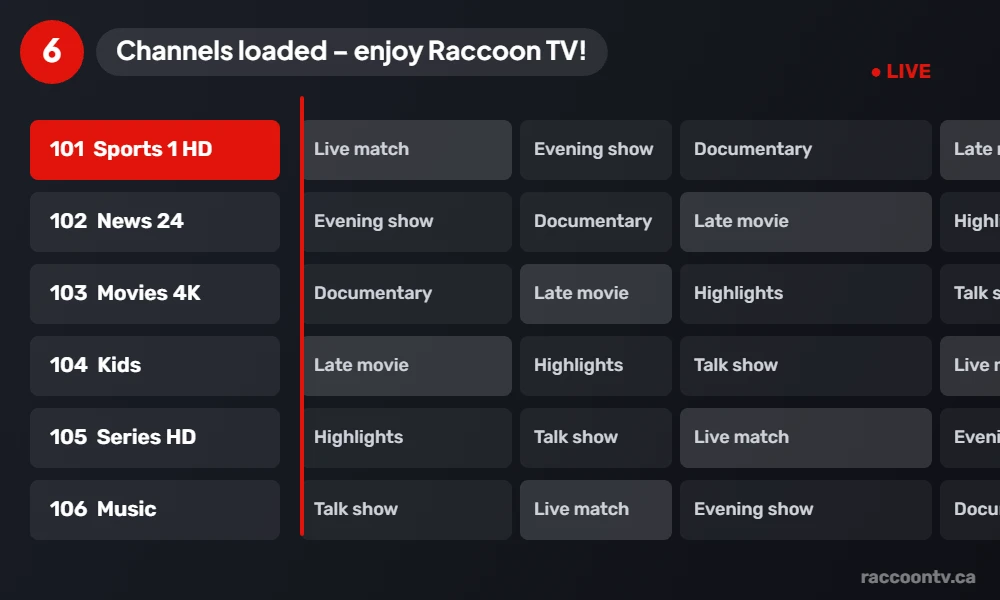
Step 6 – Start watching
Wait a few seconds while channels and the TV guide load, then pick a channel. Done!
Install Raccoon TV on Android TV & Android Boxes
For Google TV, Chromecast with Google TV, NVIDIA Shield, Sony/TCL/Hisense Android TVs and Android boxes.
Step 1 – Install the app
Open the Google Play Store, search for TiviMate, IPTV Smarters Pro or XCIPTV and install it. If the app is not listed, use Downloader as shown in the Fire TV steps above.
Step 2 – Choose Xtream Codes
Open the app, tap Add playlist and pick Xtream Codes.
Step 3 – Log in and watch
Enter your Raccoon TV server, username and password, press Next and enjoy.
Install Raccoon TV on Samsung & LG Smart TV
Samsung (Tizen) and LG (webOS) TVs can run an IPTV player directly – no box needed. We recommend IBO Player Pro or IPTV Smarters.
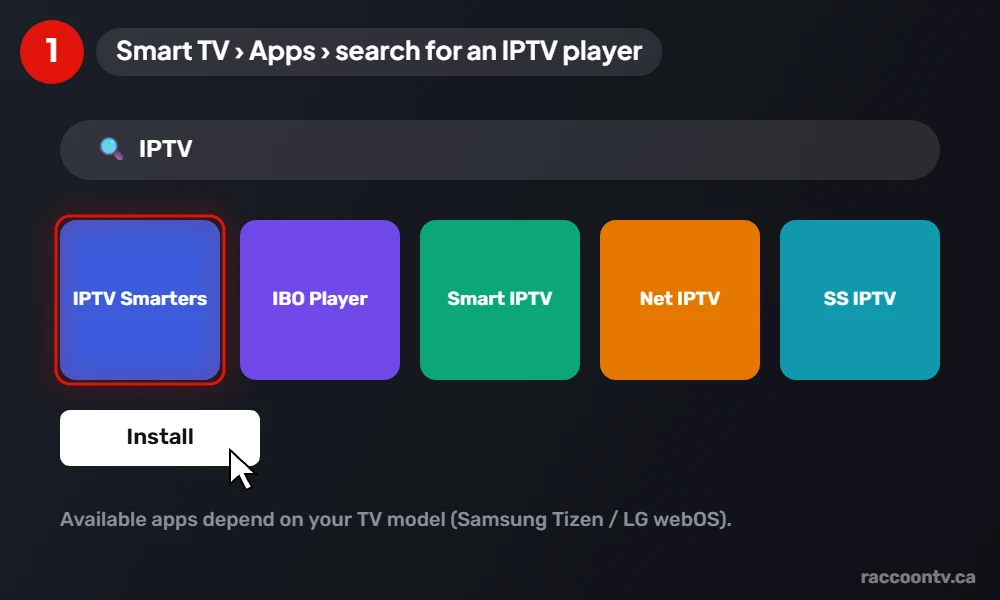
Step 1 – Install a player
Open Apps (Samsung) or LG Content Store, search “IPTV” and install IBO Player Pro, IPTV Smarters or another compatible player.
Step 2 – Enter your Raccoon TV details
Choose Xtream Codes login and enter your details. Players like IBO Player Pro show a MAC address and device key instead – send them to us on WhatsApp and we activate it for you.
Install Raccoon TV on iPhone, iPad & Android Phones
Watch on the go anywhere in Canada with IPTV Smarters Pro, GSE Smart IPTV or XCIPTV.
Step 1 – Get the app
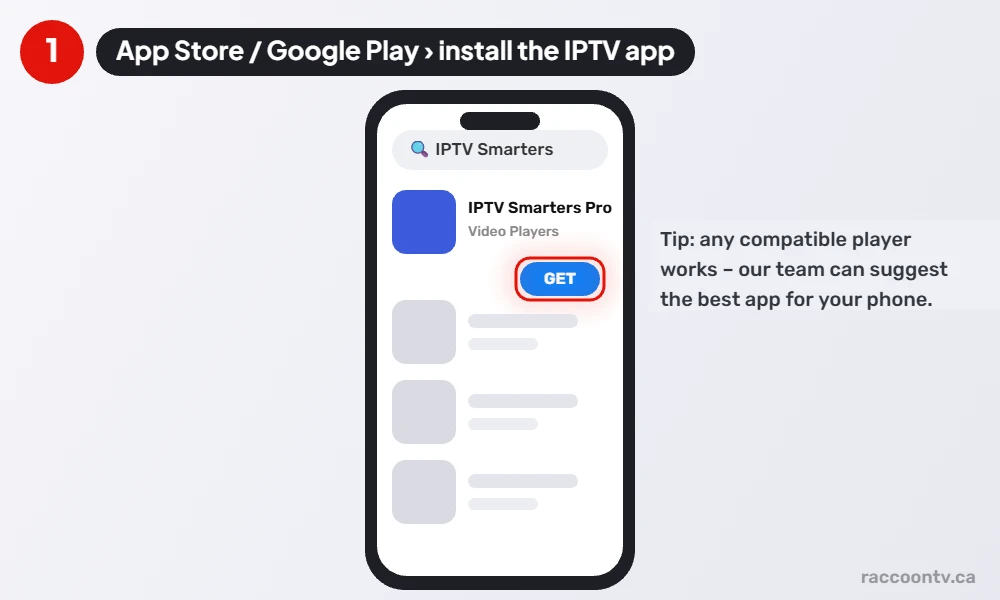
Open the App Store (iPhone/iPad) or Google Play (Android) and install IPTV Smarters Pro or another compatible player.
Step 2 – Pick Xtream Codes
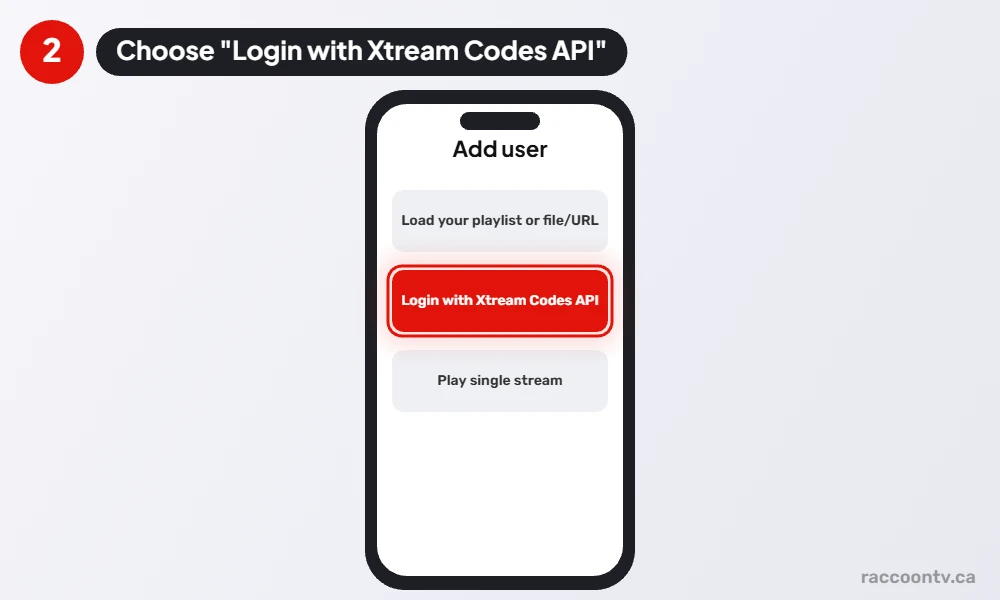
Open the app, accept the terms and tap “Login with Xtream Codes API”.
Step 3 – Add your user
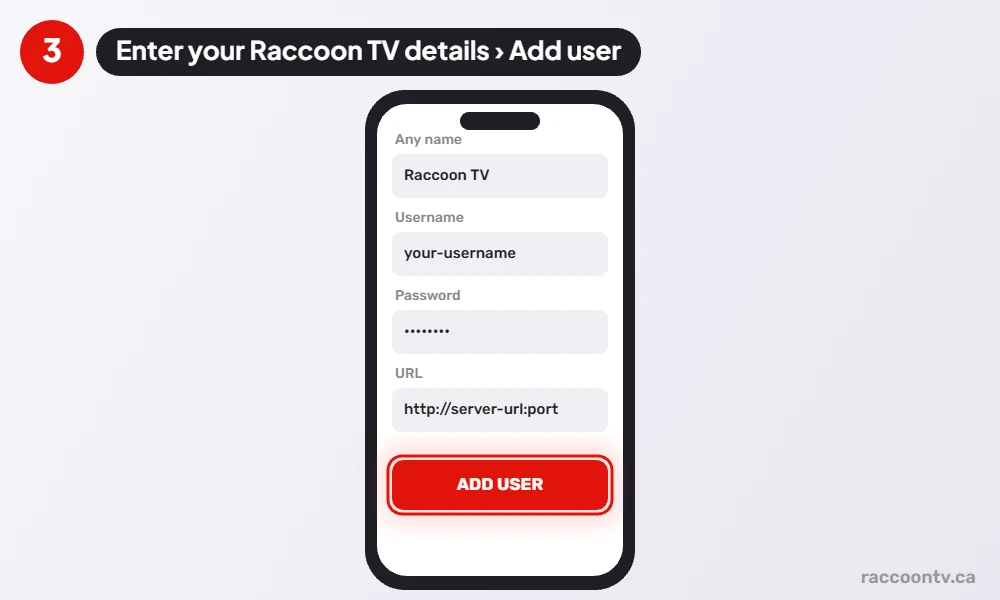
Type any name (e.g. Raccoon TV), your username, password and server URL, then tap Add User.
Install Raccoon TV on Windows & Mac
Use IPTV Smarters for Windows/macOS, or VLC with your M3U link.
Add your playlist
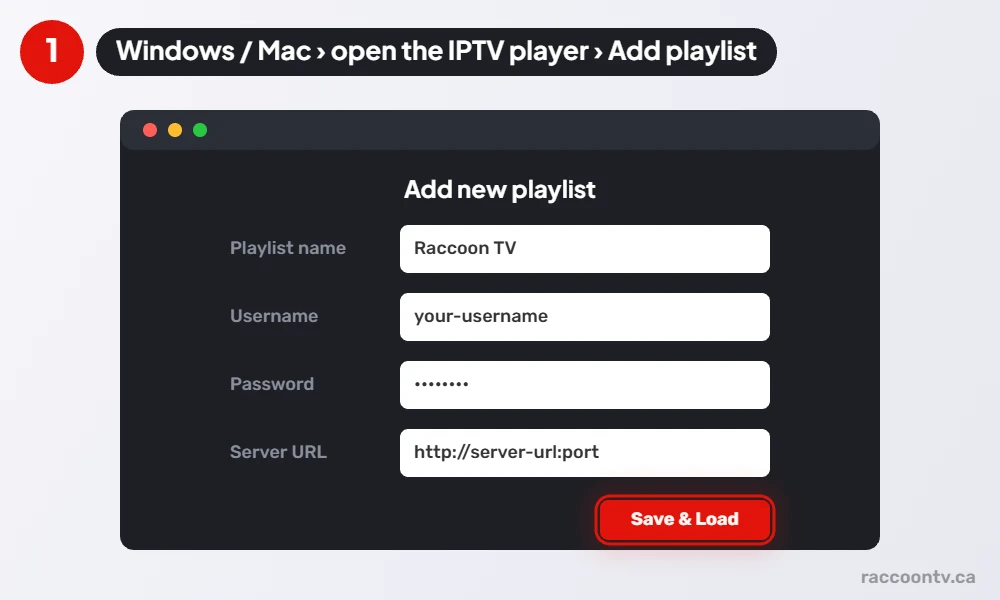
Install the player from its official website, open Add new playlist, enter your Raccoon TV details and click Save & Load.
Set Up Raccoon TV on MAG, Formuler & BuzzTV
Box models connect with a portal URL linked to the MAC address of your device.
Enter the portal URL
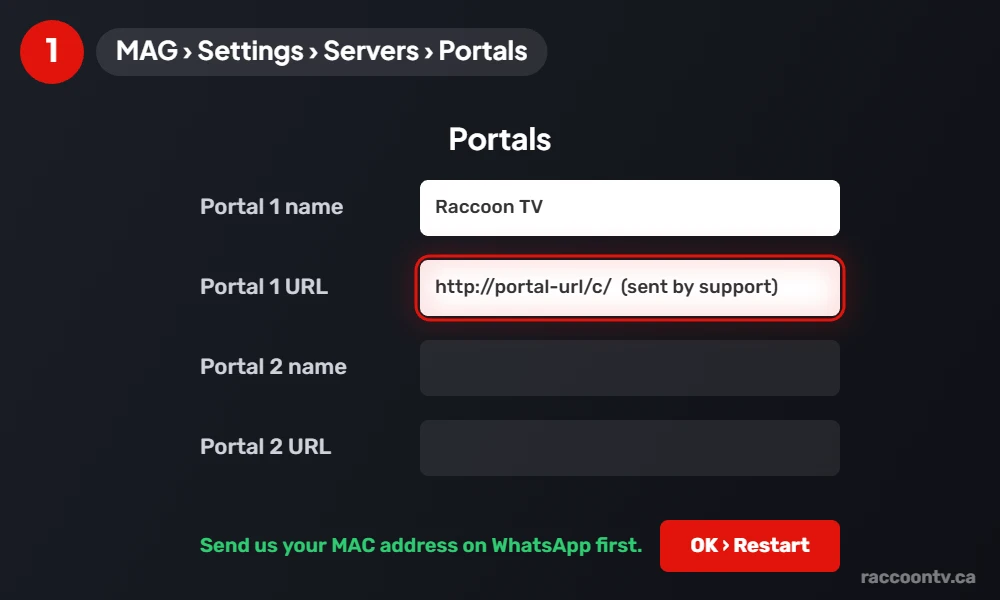
Send us the MAC address printed under your box. On MAG go to Settings › Servers › Portals, enter “Raccoon TV” and the portal URL we send you, then restart. On Formuler use MyTVOnline › Add portal; on BuzzTV use the built-in IPTV app.
Apple TV & Roku
Apple TV
Open the App Store on Apple TV, install iPlayTV or IPTV Smarters, choose Xtream Codes or M3U and enter your Raccoon TV details.
Roku
Roku does not support most IPTV player apps. For the best experience on a Roku TV, plug in an affordable Fire TV Stick or Android TV device and follow the steps above.
 We accept Interac® e-Transfer✔ 15-Day Money-Back Guarantee